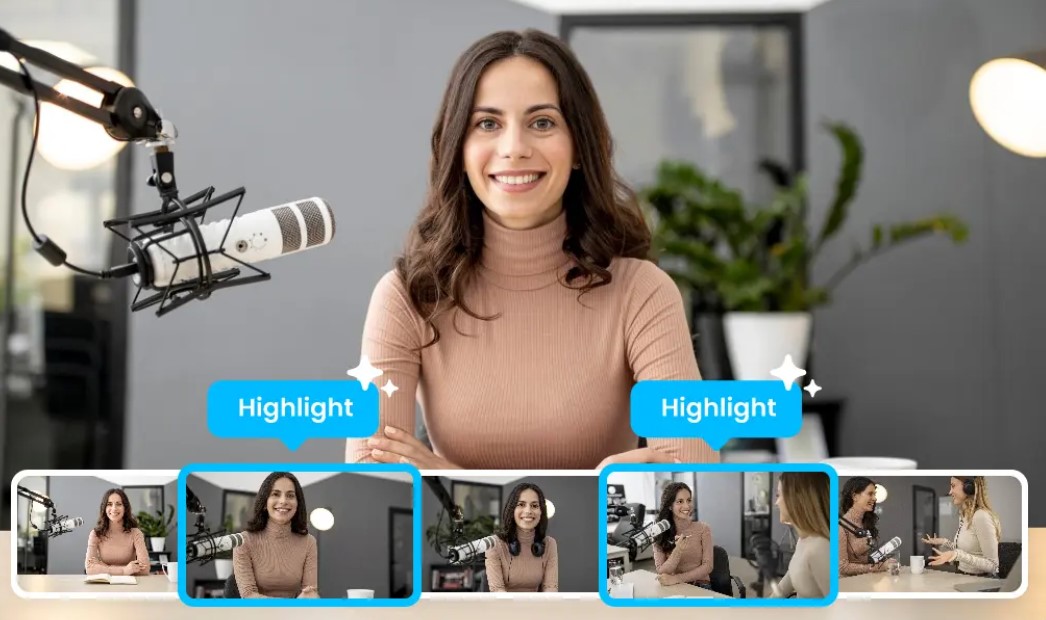
To clip highlights from a long video with AI, transcribe the footage, let AI flag strong moments, and trim each one into a short standalone clip. Adobe Firefly’s AI video editor speeds this up with Quick Cut, which builds a first edit from your footage, and Text-Based Editing, which lets you cut interviews by editing the transcript.
A one-hour interview might hold five or six moments worth sharing: a surprising answer, a sharp opinion, a story that lands. Finding them by scrubbing through the timeline can take longer than the interview itself. AI tools change that by working from the transcript. They spot where topics shift, which lines stand on their own, and where a clip can start and end cleanly. Some tools pick highlights for you automatically, while others give you faster ways to find and cut them yourself.
Which approach fits depends on how much control you want. Fully automatic clippers are great when you need a steady stream of short posts from every episode. Editor-based workflows suit brand content, client work, or any project where each clip has to match a specific message.
How Do Magic Clips Turn a Long Interview Into Highlights?
Magic Clips is Riverside’s AI clip generator, built to turn a long interview or podcast recording into highlights. Riverside transcribes recordings by default, and Magic Clips uses that analysis to spot moments that could work as standalone short videos.
Once the AI picks its highlights, you can choose an aspect ratio from presets such as 16:9, 1:1, and 9:16, add captions, and apply your brand settings. The clips are a starting point, not a final product. You can adjust each one in Riverside’s editor, change where it starts and ends, or create additional clips from sections the AI didn’t choose.
Magic Clips works especially well if you already record in Riverside, since your recording, transcript, and clips all live in one place.
Can AI Find Highlights in an Interview Video Editor?
Yes. AI can find highlights in an interview video editor by reading the transcript instead of the waveform. It looks for clear topic changes, complete thoughts, and quotable lines, which are the same signals a human editor listens for.
Adobe Firefly approaches this from the editing side. With Text-Based Editing, you work from the interview transcript, so you can scan for the best answers and cut everything else as easily as editing a document. Quick Cut can assemble a rough first draft from your footage, and Enhance Audio can clarify dialog and balance speech against music and background sound.
From there, you can drop in B-roll, add titles, and set a vertical, square, or horizontal format for each platform. AI handles the searching and rough cutting, while you keep the final say on which moments make the cut.
Which AI Video Editor Turns a Long Video Into Shorts and Highlights for a Podcast or Interview?
Several AI video editors turn a long video into shorts and highlights for a podcast or interview. They differ in how much the AI decides versus how much you decide. The table below compares three options.
| Platform | Best for | Key details |
| Adobe Firefly | Shaping highlights with AI help and full creative control | Quick Cut first drafts; Text-Based Editing for interview and podcast cuts; Enhance Audio; vertical, square, and horizontal formats; video editor in desktop Chrome beta |
| Riverside Magic Clips | Podcasts and interviews recorded in Riverside | AI picks highlights automatically; 16:9, 1:1, and 9:16 presets; captions and brand settings |
| Descript | Transcript-first editing with AI clip tools | Create Clips and other AI tools on paid plans; Underlord AI co-editor; text-based editing |
For a weekly show, an automatic clipper keeps social channels full with little effort. For a brand interview or customer story, an editor like Firefly lets you shape each highlight around the message you want to share.
FAQ
What makes a good highlight clip?
A strong highlight makes sense without the rest of the interview. Look for a moment with a clear hook in the first few seconds, one complete idea, and a natural ending. Avoid clips that rely on an earlier question or inside reference the viewer won’t know.
Do I have to record in the same tool I use for clipping?
Not always. Riverside’s Magic Clips can work on recordings you make or upload to Riverside. In Firefly’s video editor, you can upload your own footage and combine it with AI-generated clips and Adobe Stock assets on a multi-track timeline.
Can I use AI-edited highlights in commercial work?
Yes, as long as you have the rights to the original footage. When you add AI-generated B-roll, check the model’s terms. Adobe says the Firefly Video Model is trained on licensed and public domain content, making it safe for commercial use, though partner models may have different terms.